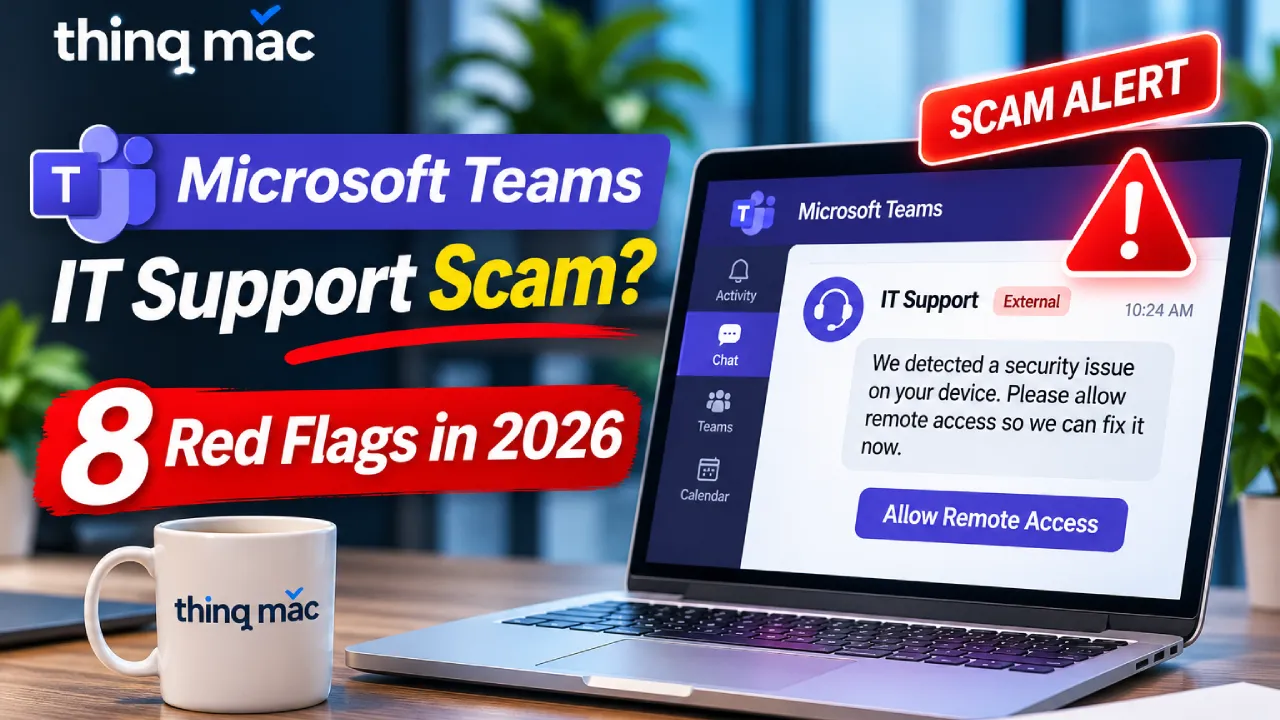
Fake IT support scams on Microsoft Teams are a growing cybersecurity concern for businesses in 2026. Cybercriminals are impersonating IT helpdesk employees, sending unexpected Teams messages, and convincing staff to approve remote access to company computers.
What makes these attacks dangerous is that they often begin inside a familiar business application rather than through an obvious suspicious email.
An employee might receive a Microsoft Teams call from someone claiming to be an IT administrator. The caller may warn about a security problem, software update, or account issue that supposedly requires immediate attention.
If the employee trusts the caller and grants unauthorized remote access, attackers may gain access to business systems and sensitive information.
Microsoft has documented real-world campaigns involving Teams helpdesk impersonation and the misuse of legitimate remote support tools.
For small businesses, understanding these threats is essential.
This guide explains how Microsoft Teams IT support scams work, how to recognize fake helpdesk messages, and how businesses can strengthen Microsoft Teams security before an incident occurs.
What Is a Microsoft Teams IT Support Scam?
A Microsoft Teams IT support scam is a social engineering attack in which someone impersonates a legitimate IT employee, technical support representative, or security administrator through Microsoft Teams.
The attacker typically attempts to convince an employee to take an action that creates a security risk.
Common requests include:
- Approving an unexpected remote support session.
- Sharing account credentials or authentication codes.
- Opening suspicious links.
- Installing unapproved software.
- Granting access to company information.
- Ignoring security warnings.
The attacker may use a convincing display name, familiar technical language, or an urgent explanation.
The important distinction is that the scam exploits employee trust and business workflows rather than necessarily exploiting a vulnerability in Microsoft Teams itself.
Microsoft Teams Scam: Quick Facts
| Question | Answer |
|---|---|
| Can scammers contact employees through Teams? | Yes, depending on external communication settings. |
| Do scammers impersonate IT support? | Yes. Microsoft has documented these campaigns. |
| Can fake IT support lead to account compromise? | Yes, especially when employees approve unauthorized access. |
| Is Microsoft Teams itself hacked? | Not necessarily. Many attacks misuse legitimate collaboration features. |
| Can businesses reduce the risk? | Yes, through access controls, verification, employee training, and monitoring. |
| Should employees trust unexpected support calls? | No. They should verify requests through approved IT channels. |
Why Fake IT Support Scams Are a Serious Threat in 2026
In September 2026, Microsoft Security Research published an investigation describing attackers who used Microsoft Teams to impersonate helpdesk personnel.
The campaign involved external Teams communications followed by attempts to persuade employees to grant remote access.
Microsoft observed that attackers could then misuse legitimate tools to access business systems and perform unauthorized activities.
Earlier Microsoft research from April 2026 documented similar cross-tenant helpdesk impersonation activity.
These findings highlight an important shift in social engineering.
Cybercriminals are not limited to phishing emails. They also target the communication platforms employees use every day.
Why Small Businesses Should Pay Attention
Small businesses often depend on Microsoft Teams for:
- Internal employee communication.
- Video meetings.
- IT support coordination.
- Customer and vendor collaboration.
- Remote work.
- File sharing.
Employees may be accustomed to receiving legitimate technical support through digital communication tools.
Without a clear verification process, an unexpected support request can appear credible.
Businesses should therefore review how employees recognize authorized IT personnel and approve remote assistance.
How Fake IT Support Scams on Microsoft Teams Work
Although individual incidents differ, a common scam follows several recognizable stages.
Stage 1: An Unexpected Teams Message or Call
An employee receives a Teams message from someone claiming to represent the company’s IT department.
The caller may use a name or profile that resembles an internal support account.
The message might claim:
- An urgent security update is required.
- The employee’s computer has a technical problem.
- An account needs verification.
- The IT department detected suspicious activity.
- A software issue must be resolved immediately.
The purpose is to make the employee believe the request is legitimate.
Stage 2: The Scammer Creates Urgency
The impersonator may claim that failing to act quickly will interrupt the employee’s work.
This pressure can discourage the employee from checking the request through normal support channels.
Urgency is not proof of fraud, but it becomes suspicious when combined with unexpected access requests.
Stage 3: The Employee Is Asked to Grant Access
The caller may request a remote support session or another form of device access.
Legitimate IT teams sometimes use remote assistance tools, but those tools should only be used through approved company procedures.
An unexpected external contact requesting control of a business computer is a major warning sign.
Stage 4: Business Systems May Be Exposed
If unauthorized access is granted, the incident may affect more than the employee’s current application.
Depending on the account’s permissions and the security environment, business information and connected systems may be at risk.
Stage 5: The Business Must Investigate
An organization may need to investigate affected devices, user accounts, remote sessions, and potential information exposure.
The scope cannot be determined solely from the original Teams message.
This is why prevention and prompt reporting are important.
8 Warning Signs of a Fake Microsoft Teams IT Support Message
Employees should recognize the following warning signs.
| Warning sign | Why it matters |
|---|---|
| Unexpected IT support contact | The employee did not request assistance |
| External organization indicator | The sender may not belong to the company |
| Urgent security warning | Pressure may be used to discourage verification |
| Remote access request | Unauthorized access can expose business systems |
| Request for authentication codes | Legitimate support should not need employees to disclose MFA codes |
| Unapproved software request | The employee may be asked to bypass company policy |
| Refusal to provide a support ticket | The contact cannot be verified through established procedures |
| Instructions to ignore warnings | The sender may be attempting to bypass security protections |
A Professional-Looking Teams Profile Is Not Proof of Identity
Attackers may use convincing names, profile images, and technical language.
Employees should not rely solely on how a Teams account appears.
A request should be verified through an established internal IT channel.
Fake IT Support vs. Legitimate IT Support
Businesses should make it easy for employees to recognize authorized technical assistance.
| Legitimate IT support | Suspicious support request |
|---|---|
| Uses established company channels | Contacts employees unexpectedly |
| Can be verified through an approved helpdesk | Cannot be independently verified |
| Follows documented remote access procedures | Pressures employees to grant immediate access |
| Explains the reason for assistance | Uses vague or threatening explanations |
| Respects company security policies | Asks employees to bypass security controls |
| Documents relevant support activity | Discourages verification or reporting |
Not every unexpected IT message is malicious.
However, employees should verify the sender before granting access or sharing sensitive information.
How to Protect Microsoft Teams From Fake IT Support Scams
Businesses should use a layered approach that combines Microsoft 365 configuration, identity security, device protection, and employee awareness.
1. Review Microsoft Teams External Access Settings
Microsoft Teams supports communication with users outside an organization.
External collaboration can be valuable for customers, vendors, and business partners.
However, businesses should determine whether their current settings allow unnecessary communication from unknown external organizations.
IT administrators should review:
- External access policies.
- Trusted external domains.
- Guest access requirements.
- External sender indicators.
- Relevant communication restrictions.
Some organizations may choose to limit external communications to approved business partners.
Others may require broader collaboration.
The appropriate policy depends on business needs.
2. Establish a Verified IT Helpdesk Process
Employees should know exactly how to contact authorized IT support.
A documented process may include:
- An approved helpdesk email address.
- A support ticket system.
- An internal IT contact directory.
- A trusted support phone number.
- A defined remote assistance approval procedure.
When an unexpected Teams support request arrives, employees should verify it using one of these existing channels.
Do not use contact details supplied only by the suspicious sender.
3. Control Remote Support Tools
Remote assistance tools are useful for legitimate troubleshooting.
However, organizations should establish rules for who can initiate sessions and which tools are approved.
Employees should not grant remote control to an unknown person simply because the request arrives through Teams.
IT administrators should review remote support policies and monitor unauthorized use where appropriate.
4. Enable Strong Authentication
Multi-factor authentication helps protect supported business accounts.
Where practical, phishing-resistant methods such as passkeys or FIDO2 security keys provide stronger protection against certain credential theft techniques.
Organizations should also review administrator account security and appropriate Conditional Access policies.
5. Protect Employee Devices
Businesses should maintain appropriate endpoint security on supported Windows and Mac computers.
Important measures include:
- Operating-system security updates.
- Endpoint protection.
- Device encryption.
- Appropriate user permissions.
- Approved application management.
- Security monitoring.
6. Train Employees to Verify Support Requests
Security awareness training should include realistic Microsoft Teams scam scenarios.
Employees should understand that:
- A familiar display name does not establish identity.
- External contacts may impersonate internal staff.
- Unexpected remote access requests require verification.
- Authentication codes should not be shared.
- Suspicious activity should be reported promptly.
7. Monitor Suspicious Account Activity
Organizations should review available Microsoft 365 security alerts and sign-in information.
Depending on licensing and configuration, Microsoft security tools may help identify suspicious activity involving accounts, devices, and collaboration services.
8. Review Microsoft 365 Security Regularly
Teams security should be part of a broader Microsoft 365 security review.
Businesses should periodically evaluate:
- User permissions.
- External collaboration.
- Identity security.
- Device compliance.
- Administrator privileges.
- Security monitoring.
- Employee onboarding and offboarding.
Security policies should reflect how employees actually use collaboration tools.
How thinq mac Can Help Protect Your Business From Microsoft Teams Scams
Fake helpdesk scams are not simply an employee awareness problem.
They can reveal weaknesses in account security, remote support procedures, device management, and Microsoft 365 administration.
thinq mac helps businesses manage and secure their IT environments, including Apple-first and mixed Mac/Windows workplaces.
Its cybersecurity services cover areas such as security assessments, endpoint protection, monitoring, and incident response support.
A business security review can help identify opportunities to strengthen:
- Employee account protection.
- Device security configurations.
- Remote access policies.
- Security monitoring.
- IT support procedures.
- Employee awareness.
Worried about fake IT support messages targeting your employees?
Explore thinq mac Cybersecurity Services to discuss your business security requirements.
What to Do If an Employee Responds to a Fake Teams Support Request
If an employee has interacted with a suspicious Teams contact, the appropriate response depends on what occurred.
If the Employee Only Received a Message
Receiving a suspicious message does not automatically mean the account or device has been compromised.
The employee should avoid interacting further and report the message through the company’s established security process.
If the Employee Clicked a Suspicious Link
Report the incident and allow the IT team to assess whether account credentials or other information may have been exposed.
If the Employee Shared Account Credentials
Notify IT immediately.
The security team should assess the account, revoke suspicious sessions where appropriate, review sign-in activity, and apply necessary account protections.
If the Employee Granted Remote Access
Treat the situation as a potential security incident.
Stop further interaction with the suspicious contact and notify authorized IT personnel immediately.
Qualified responders should determine whether the device requires isolation and investigation.
Avoid wiping the device or deleting evidence before the response team has assessed the situation.
If Business Information May Have Been Exposed
The organization should evaluate the scope of the incident.
Depending on the findings, legal, compliance, insurance, or other relevant stakeholders may need to be involved.
Incident Response Checklist
| Action | Priority |
|---|---|
| Report suspicious Teams contact | Immediate |
| Stop unauthorized interaction | Immediate |
| Notify authorized IT support | Immediate |
| Assess remote access or credential exposure | High |
| Investigate affected devices and accounts | High |
| Preserve relevant evidence | High |
| Apply necessary security remediation | High |
| Document findings and prevention improvements | High |
A structured response is safer than making assumptions about what an attacker may or may not have accessed.
Microsoft Teams Security Checklist for Small Businesses
Use this checklist to review your organization’s protection against fake IT support scams.
| Security control | What to review |
|---|---|
| Teams external access | Are external communications appropriately restricted? |
| Guest access | Are guest permissions necessary and current? |
| Employee authentication | Is strong MFA enabled? |
| Remote support | Are approved tools and procedures documented? |
| IT helpdesk verification | Can employees independently verify support requests? |
| Endpoint protection | Are business devices protected and updated? |
| Security awareness | Do employees recognize fake support scams? |
| Account monitoring | Are suspicious sign-ins reviewed? |
| Incident response | Is there a documented reporting process? |
| Security reviews | Are policies periodically evaluated? |
This checklist provides a practical starting point.
Organizations with complex Microsoft 365 environments may require additional controls based on their business requirements.
Why Small Businesses Need Managed IT Support for Microsoft Teams Security
Many small businesses use Microsoft Teams without having a dedicated internal security team.
An employee may understand how to join meetings and share files but may not know how to verify an unexpected support request.
Similarly, business owners may not have time to regularly review Microsoft 365 settings, account permissions, and device security.
Managed IT support can help establish more consistent procedures.
Important Areas of IT Support
Account management: Review employee access and authentication settings.
Device management: Maintain supported security configurations.
Helpdesk procedures: Provide employees with an established route for technical assistance.
Security monitoring: Review relevant alerts and suspicious activity.
IT documentation: Maintain clear support procedures and responsibilities.
Employee support: Help staff resolve technical problems without relying on unverified contacts.
For businesses seeking a more structured support process, thinq mac Helpdesk & IT Support provides a relevant starting point.
Microsoft Teams Security for Mac and Windows Businesses
Microsoft Teams is used across different devices and operating systems.
A company may have MacBooks, Windows desktops, and mobile devices accessing the same Microsoft 365 environment.
This creates a need for consistent account security and support procedures.
For example, a Mac-based creative agency may use Teams for client communication while accessing Microsoft 365 cloud resources.
A professional services firm may use Windows computers for administrative applications and Macs for management or design work.
Both organizations should review:
- Microsoft 365 account security.
- Device protection.
- Remote access procedures.
- External Teams communication.
- Employee support verification.
- Data access permissions.
An organization’s security controls should reflect its complete technology environment rather than focus on one device type.
How Much Does Microsoft Teams Security Management Cost?
The cost of reviewing and managing Microsoft Teams security depends on the organization’s environment.
There is no single price that applies to every business.
Factors include:
| Factor | Why it matters |
|---|---|
| Number of employees | Influences account management and training |
| Microsoft 365 licensing | Determines available security features |
| External collaboration | Affects policy and access requirements |
| Existing security configuration | May require assessment or remediation |
| Device environment | Influences endpoint management needs |
| Monitoring requirements | Determines ongoing support needs |
| Internal IT resources | Affects the amount of outsourced support required |
Businesses should first identify their security requirements and existing Microsoft 365 capabilities.
A security assessment can help determine which improvements are necessary before purchasing additional tools or services.
Microsoft Teams Cybersecurity Support for Businesses in Norwalk, CT
Businesses in Norwalk, Connecticut, rely on Microsoft Teams, cloud applications, and connected devices for daily communication.
Professional services companies, consulting firms, creative agencies, and other organizations may use Teams to coordinate employees and communicate with external partners.
These workflows are convenient, but they require appropriate access controls and security awareness.
thinq mac, based in Norwalk, CT, provides managed IT services for Apple-first and mixed Mac/Windows business environments.
Its services support business technology management, cybersecurity, cloud administration, and employee IT support.
For businesses concerned about fake Teams support requests, a practical IT security review can help evaluate current policies and identify areas requiring improvement.
The goal is not to eliminate legitimate collaboration.
It is to help employees work securely while maintaining reliable access to approved IT support.
Frequently Asked Questions About Microsoft Teams IT Support Scams
1. Can hackers impersonate IT support on Microsoft Teams?
Yes. Microsoft has documented campaigns in which attackers impersonated IT or helpdesk employees through external Teams communications. Businesses should verify unexpected support requests before approving access.
2. Is Microsoft Teams safe for business communication?
Microsoft Teams includes security and administrative controls. However, organizations must configure access policies, protect employee accounts, and train users to recognize impersonation attempts.
3. How can I identify a fake Microsoft Teams support message?
Warning signs include unexpected support contact, external sender indicators, urgent requests, demands for remote access, and instructions to bypass normal security procedures.
4. What should I do if I gave a scammer remote access?
Notify your authorized IT security team immediately. Stop further interaction and allow qualified responders to assess the device, account activity, and possible information exposure.
5. Can Microsoft Teams phishing lead to ransomware?
It can contribute to broader compromise. Microsoft has documented Teams-based social engineering campaigns involving unauthorized remote access and activity associated with serious security incidents. Not every scam results in ransomware.
6. Can a managed IT provider help secure Microsoft Teams?
Yes. Managed IT providers can help review Microsoft 365 security settings, employee access, device protection, remote support procedures, and incident response readiness. Confirm the provider’s specific capabilities before engagement.
Final Thoughts: Stop Fake IT Support Scams Before They Disrupt Your Business
Fake IT support scams on Microsoft Teams show why businesses need security controls beyond traditional email protection.
Attackers may impersonate trusted technical support personnel and attempt to persuade employees to grant access to company systems.
A strong defense combines:
- Verified IT helpdesk procedures.
- Appropriate Teams external access settings.
- Strong employee authentication.
- Secure remote support policies.
- Endpoint protection.
- Employee awareness training.
- Ongoing security monitoring.
- Documented incident response.
No single control guarantees protection against every scam.
However, a coordinated approach can reduce unnecessary exposure and help employees recognize suspicious requests.
Protect Your Business With thinq mac
Are your employees prepared to recognize fake Microsoft Teams IT support requests?
thinq mac helps businesses strengthen their IT environments through cybersecurity, cloud management, device security, and professional IT support.
Whether your organization needs to review Microsoft 365 security settings, improve employee support procedures, or evaluate existing cybersecurity controls, a structured IT assessment is a practical starting point.
Contact thinq mac to Discuss Your Business IT Security Needs
Location: Norwalk, Connecticut.