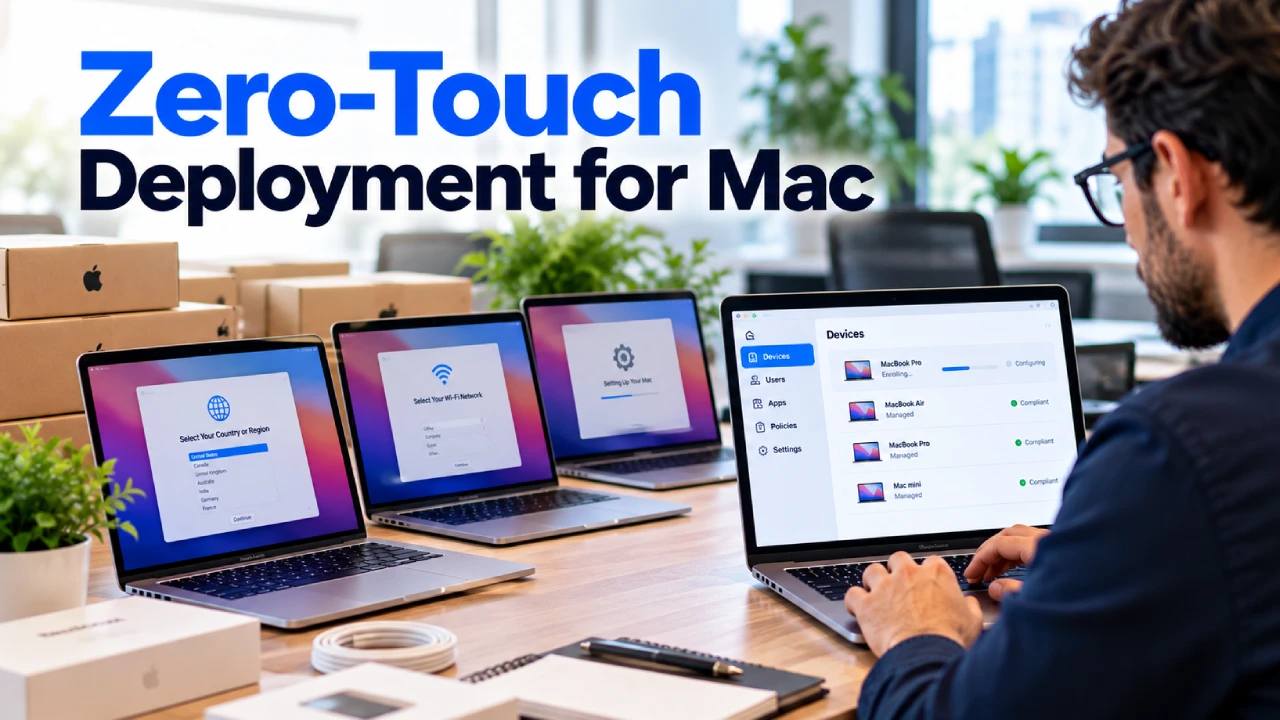
Setting up new MacBooks for employees can take time, especially when a business has multiple locations or remote team members.
Traditionally, an IT administrator might need to prepare each computer, install applications, configure security settings, and create employee accounts before handing it over.
For growing businesses, repeating this process for every new employee can become difficult to manage.
Zero-touch deployment for Mac offers a more efficient approach.
Using Apple Business Manager, Automated Device Enrollment, and a compatible Mobile Device Management (MDM) solution, businesses can automate important parts of the Mac setup process.
Instead of manually configuring every device, IT teams can prepare management settings in advance so eligible Mac computers enroll automatically during initial setup.
In this guide, we explain how zero-touch Mac deployment works, its benefits, what businesses need to get started, and how to manage Apple devices across office and remote work environments.
What Is Zero-Touch Deployment for Mac?
Zero-touch deployment for Mac is a method of preparing and managing eligible Apple computers with minimal manual configuration by an IT administrator.
It allows businesses to automate device enrollment and deliver management settings when an employee sets up a new Mac.
The process generally involves three components:
- Apple Business Manager: Helps organizations manage eligible Apple devices and assign them to a device management service.
- Automated Device Enrollment: Allows eligible devices to enroll in an organization’s management system during setup.
- Mobile Device Management (MDM): Delivers supported configuration settings, restrictions, applications, and security policies.
When these components are properly configured, an employee can receive an eligible MacBook, connect it to the internet, and follow the guided setup process.
The device can then enroll in the organization’s MDM service and receive assigned settings.
Although the term “zero-touch” suggests no manual involvement, employees may still need to complete setup screens, authenticate, or approve certain actions.
The exact experience depends on the Mac, operating system, enrollment configuration, and management platform.
How Does Zero-Touch Mac Deployment Work?
Zero-touch deployment connects device purchasing, enrollment, and configuration into a coordinated process.
Step 1: The Business Purchases Eligible Mac Devices
A business purchases MacBooks or other eligible Apple computers through supported purchasing channels.
When properly linked to the organization’s Apple Business Manager account, eligible devices can appear in its device inventory.
Businesses should confirm purchasing and enrollment eligibility with their Apple reseller or provider.
Step 2: Devices Are Assigned to an MDM Service
An administrator assigns the eligible Mac devices to the organization’s connected MDM service.
This tells Apple’s enrollment system which management platform should handle the device during setup.
Step 3: The Employee Receives the Mac
The computer can be shipped to the employee’s office or another approved location.
In an appropriate deployment arrangement, the IT department does not need to physically configure every device before delivery.
Step 4: The Mac Connects to the Internet
When the employee starts the Mac and connects it to the internet, the setup process checks whether the device has an assigned organization management configuration.
For eligible and correctly assigned devices, the Mac can display the organization’s remote management enrollment experience.
Step 5: The Mac Enrolls in MDM
The device enrolls in the assigned management service according to the organization’s enrollment settings.
Depending on the configuration, employees may need to authenticate or complete additional setup steps.
Step 6: Business Settings Are Applied
The MDM service can deliver supported configurations, such as:
- Wi-Fi settings
- Security policies
- Device restrictions
- Managed application assignments
- Account and identity configurations
- Operating system management settings
- Other organization-specific requirements
Some settings and applications may be delivered after the employee reaches the desktop.
What Is Apple Business Manager?
Apple Business Manager is an Apple service that helps organizations manage eligible Apple devices and related business resources.
For Mac deployment, one of its most important capabilities is supporting Automated Device Enrollment.
Organizations can use Apple Business Manager to associate eligible devices with their business and assign those devices to a compatible MDM service.
This helps IT administrators establish a consistent device enrollment process.
Benefits of Apple Business Manager
Apple Business Manager can help organizations:
- Organize eligible company-owned Apple devices
- Assign devices to an MDM service
- Support Automated Device Enrollment
- Manage eligible applications and licenses
- Maintain greater visibility into device assignments
- Support standardized deployment procedures
However, Apple Business Manager is not a complete device management solution by itself.
Businesses generally need a compatible MDM platform to configure and manage enrolled Mac computers.
What Is Automated Device Enrollment?
Automated Device Enrollment is an Apple enrollment method that helps organizations enroll eligible company-owned devices in an MDM solution during setup.
It is particularly useful for businesses deploying multiple Mac computers.
Depending on the device and management configuration, Automated Device Enrollment can help organizations:
- Streamline device enrollment
- Apply management requirements
- Configure supervised management where supported
- Enforce eligible enrollment settings
- Reduce repetitive manual setup tasks
The enrollment experience depends on the organization’s settings and Apple’s supported device capabilities.
Automated Device Enrollment vs Manual Enrollment
With manual enrollment, an IT administrator or employee may need to complete additional steps to connect a device to an MDM service.
With Automated Device Enrollment, eligible devices can receive their management enrollment instructions during initial setup.
This can simplify deployment and support more consistent management of company-owned Macs.
7 Benefits of Zero-Touch Deployment for Businesses
1. Faster Employee Onboarding
New employees need access to properly configured computers and business applications.
Zero-touch deployment can reduce the number of manual setup tasks required before an employee receives a Mac.
IT administrators can prepare device management configurations in advance.
2. Support for Remote Employees
Remote employees may work from home or from locations outside the main office.
With an appropriate zero-touch deployment setup, eligible MacBooks can be delivered directly to employees.
The device can begin its enrollment process when connected to the internet.
This reduces the need for every computer to pass through the IT department before delivery.
3. Consistent Device Configuration
Manually configuring computers can lead to differences between devices.
A standardized deployment process helps businesses apply consistent settings across supported Macs.
For example, organizations can establish common security policies, application assignments, and management requirements.
4. Better IT Visibility
An MDM solution can provide information about enrolled devices and their management status.
Depending on the platform, administrators may be able to review device inventory, operating system information, and applicable configuration status.
This helps businesses maintain more organized IT records.
5. Improved Security Management
Organizations can use supported MDM capabilities to help enforce security requirements.
Examples may include:
- Disk encryption policies
- Password requirements
- Operating system update management
- Security configuration settings
- Managed application deployment
- Device restrictions
These controls depend on the Mac operating system and MDM platform.
Zero-touch deployment supports security management, but it does not replace a complete cybersecurity strategy.
6. Reduced Repetitive IT Tasks
Preparing multiple computers manually can require considerable administrative effort.
Automating enrollment and supported configuration tasks allows IT teams to spend less time repeating the same setup procedures.
7. Easier Business Growth
As companies hire more employees, their device deployment requirements may increase.
A standardized enrollment process can help businesses manage additional Mac computers without relying entirely on manual setup.
What Do Businesses Need for Zero-Touch Mac Deployment?
Before implementing zero-touch deployment, organizations should review their existing Apple device environment.
1. Apple Business Manager
The organization needs an appropriately configured Apple Business Manager account.
Administrators should verify organizational information and complete the required setup.
2. Eligible Mac Computers
Not every existing Mac is automatically eligible for the same enrollment workflow.
Device eligibility depends on factors such as purchasing channels, operating system support, and Apple’s enrollment requirements.
Businesses should verify eligibility before planning deployment.
3. A Compatible MDM Solution
An MDM platform is required to deliver management configurations to enrolled devices.
The business should select a solution that supports its Apple devices, security requirements, and administrative needs.
4. Reliable Internet Connectivity
During initial setup, the Mac generally needs internet access to contact Apple’s enrollment services and connect to the assigned management system.
5. Device Management Policies
Organizations should establish clear policies covering:
- Employee device assignments
- Approved applications
- Security requirements
- Administrative permissions
- Software updates
- Device replacement
- Employee onboarding and offboarding
These policies help keep the deployment process consistent.
How to Set Up Zero-Touch Deployment for Mac
Businesses can approach implementation through the following stages.
Step 1: Review the Existing Mac Environment
Identify the number of Mac computers currently used by the business.
Determine which devices are company-owned, how they were purchased, and whether they are already enrolled in a management system.
Review existing security settings and employee requirements.
Step 2: Configure Apple Business Manager
Set up the organization’s Apple Business Manager account and confirm that the appropriate administrators have access.
Review device assignments and supported purchasing arrangements.
Step 3: Connect the MDM Platform
Establish the required connection between Apple Business Manager and the organization’s MDM service.
Follow the current setup instructions from Apple and the selected MDM provider.
Step 4: Create Enrollment Profiles
Configure the supported enrollment settings for the organization’s Mac computers.
Depending on the platform, administrators may be able to control enrollment requirements and aspects of the setup experience.
Step 5: Prepare Device Security Policies
Review the organization’s security requirements before deploying devices.
Configure supported settings such as disk encryption, password policies, operating system management, and approved applications.
Step 6: Test With a Small Number of Macs
Before deploying to every employee, test the setup process using eligible devices.
Confirm that enrollment works correctly and that required settings are delivered.
Review the employee experience and resolve any problems.
Step 7: Deploy Devices to Employees
Once testing is complete, the organization can begin deploying eligible Mac computers to employees.
Provide clear instructions explaining how to connect the device to the internet and complete the setup process.
Step 8: Monitor Enrollment and Device Status
After deployment, review device management records.
Confirm that devices have enrolled successfully and received their required configurations.
Address any failed enrollments or missing settings.
Zero-Touch Deployment for Remote and Hybrid Teams
Remote and hybrid work environments create additional challenges for IT administrators.
Employees may work in different locations, making it difficult to prepare and deliver devices through a central office.
Zero-touch deployment can help businesses create a more consistent Mac setup experience.
Direct Device Delivery
Eligible Mac computers can be shipped to employees without requiring every device to be configured manually at the office.
Standardized Security Policies
Supported MDM settings can help organizations apply consistent management policies to enrolled devices.
Remote Application Management
Depending on the MDM platform and application, administrators may be able to assign or deploy business software remotely.
Centralized Device Records
IT administrators can maintain records of managed devices, assignments, and relevant configuration information.
These capabilities can be useful for organizations with employees working across different locations.
Common Mac Deployment Challenges
Even with automated enrollment, businesses may encounter technical or administrative issues.
Devices Are Not Assigned Correctly
A Mac may not receive the expected enrollment configuration if it has not been assigned to the correct MDM service.
Administrators should verify device assignments before deployment.
Network Connectivity Problems
Internet connectivity issues can prevent the device from reaching required enrollment services.
Employees should have access to a suitable network during initial setup.
Incorrect Management Profiles
Improperly configured enrollment settings may create problems during setup.
Testing profiles before wider deployment can help identify these issues.
Application Compatibility
Some business applications may require additional configuration or employee interaction.
Organizations should test critical software before deployment.
Incomplete Employee Instructions
Employees may be unfamiliar with the remote management setup process.
Clear instructions and access to technical support can improve the onboarding experience.
Best Practices for Managing Business Mac Computers
Zero-touch deployment is most effective when combined with ongoing device management.
Maintain an Accurate Device Inventory
Keep records of company-owned Macs, assigned employees, and device management status.
Apply Consistent Security Policies
Review password requirements, disk encryption, operating system updates, and other supported security settings.
Use Appropriate Administrative Permissions
Employees should receive access based on their job responsibilities and the organization’s security policies.
Review Software and Application Requirements
Ensure that required business applications are compatible with supported Mac operating systems.
Establish Device Replacement Procedures
Plan how employees will receive replacement computers and how existing devices will be recovered or reassigned.
Include Devices in Employee Offboarding
When an employee leaves, review assigned devices, company accounts, and management records.
A documented process helps businesses maintain control over company technology.
How Managed IT Services Can Support Mac Deployment
Businesses may not have a dedicated Apple IT administrator to manage device enrollment and configuration.
Managed IT services can support organizations with Apple device management and related technology administration.
Relevant services include:
- Mobile Device Management
- IT infrastructure management
- Employee onboarding support
- Device inventory management
- IT documentation
- Help desk support
- Remote and on-site assistance
- Security configuration reviews
The appropriate approach depends on the organization’s existing devices, management systems, and business requirements.
Mac IT Support and Device Management in Norwalk, CT
thinq mac is a Mac-first managed IT services provider based in Norwalk, Connecticut.
We support businesses using Apple technology and mixed Mac and Windows environments.
Our services include Mobile Device Management, help desk support, IT infrastructure management, cloud service management, and remote and on-site technical assistance.
For organizations looking to improve Mac deployment, employee onboarding, or ongoing device management, our team can discuss available IT support services based on business requirements.
Explore our Mobile Device Management Services or Business IT Support to learn more.
Frequently Asked Questions About Zero-Touch Deployment for Mac
1. What is zero-touch deployment for Mac?
Zero-touch deployment for Mac is an approach that uses Apple Business Manager, Automated Device Enrollment, and a compatible MDM solution to automate important parts of device enrollment and configuration.
It helps businesses reduce repetitive manual setup tasks.
2. Do businesses need Apple Business Manager for zero-touch Mac deployment?
For Apple’s Automated Device Enrollment workflow, businesses generally use Apple Business Manager or another supported Apple organizational enrollment service together with a compatible MDM solution.
Apple Business Manager alone does not provide complete device management.
3. Can a MacBook be configured remotely?
Yes. Eligible MacBooks can enroll in an organization’s MDM system during setup and receive supported configurations remotely.
The process may still require employee interaction and internet connectivity.
4. Is zero-touch deployment suitable for small businesses?
Yes. Small businesses that manage multiple Apple computers or support remote employees may benefit from standardized device enrollment and configuration.
The value depends on the organization’s device count, IT resources, and operational needs.
5. Can zero-touch deployment improve Mac security?
Zero-touch deployment can support consistent application of security settings through an MDM platform.
However, businesses still need appropriate access controls, employee training, device monitoring, and other cybersecurity measures.
Final Thoughts
Zero-touch deployment for Mac helps businesses simplify how eligible Apple computers are enrolled and configured.
By combining Apple Business Manager, Automated Device Enrollment, and a compatible MDM solution, organizations can reduce repetitive setup work and support more consistent device management.
For businesses with remote employees or growing Mac environments, a standardized deployment process can improve onboarding and help IT administrators maintain better visibility into company-owned devices.
However, successful deployment requires planning, testing, compatible equipment, and ongoing management.
Need help managing Mac computers for your business?
thinq mac provides Mac-focused managed IT services for businesses in Norwalk, CT, including Mobile Device Management, IT infrastructure management, and technical support.
Visit thinqmac to explore our services and discuss your organization’s IT requirements.